
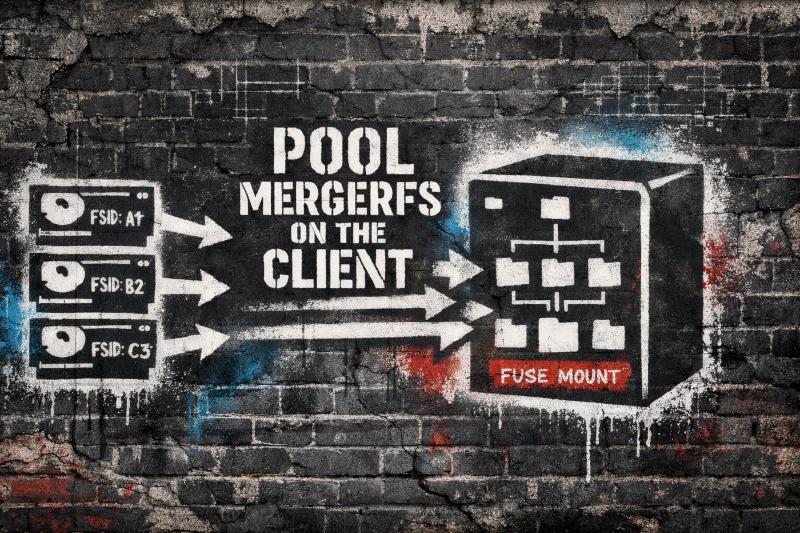
If you’re running a homelab NAS with a MergerFS and SnapRAID setup and sharing that pool over NFS, there’s a good chance you’ve run into one of the most frustrating errors in the self-hosted world: stale file handles. Files that were accessible five minutes ago suddenly aren’t. Containers break. Plex stops mid-stream. You restart everything, it works for a while, and then it happens again.
I spent way too long troubleshooting stale file handles on NFS before landing on the actual cause, and it turned out to be a fundamental mismatch between how MergerFS works as a FUSE filesystem and what NFS expects from its exports. This post walks through the problem, why it happens, and the fix that finally made it go away for good.
Sharing a MergerFS pool directly over NFS causes stale file handles because NFS can't reliably track file handles across a FUSE filesystem. The fix is to export each underlying disk individually over NFS, then install MergerFS on the client machine and pool them there. Your SnapRAID config on the NAS doesn't need to change at all since it already points at the individual drives. The stale handle errors go away permanently because NFS is finally working with real filesystems instead of a FUSE layer.
Why MergerFS and NFS Cause Stale File Handles
MergerFS is a FUSE-based union filesystem. It takes multiple individual drives and presents them as a single merged mount point. If you’re running a typical MergerFS and SnapRAID homelab stack, you probably have several data disks pooled together with MergerFS for day-to-day use and SnapRAID providing parity protection on top. That architecture is great for local use - your applications see one big pool and MergerFS handles file placement across the underlying disks based on your chosen policy.
The trouble starts when you export that merged FUSE mount point directly over NFS. NFS relies on file handles to track files across the network. These handles are tied to the underlying filesystem’s inode and device information. Because MergerFS runs as a FUSE filesystem in userspace rather than as a native kernel filesystem, it generates its own virtual file handles. When MergerFS resolves paths across drives, or when SnapRAID maintenance operations like syncs and scrubs touch the underlying files, those FUSE-generated handles can become invalid from NFS’s perspective. The NFS client asks for a file using a handle that no longer points to anything valid, and you get the dreaded Stale file handle error.
This isn’t a bug or a misconfiguration you can tune away.

MergerFS official Documentation
Explicitly calls this out. Exporting a FUSE-based MergerFS pool directly over NFS is not a supported workflow.
The Fix: Export Individual Drives Over NFS, Run MergerFS on the Client
The solution is to flip the architecture. Instead of pooling on the server and exporting the MergerFS mount, you export each underlying drive individually over NFS and then run MergerFS on the client side to combine them back into a single merged view.
It sounds like more work, but the setup is straightforward and the result is rock solid. NFS gets stable, predictable file handles because each export is a real ext4 or XFS filesystem on a real disk - not a virtual FUSE layer. MergerFS still gives you a single unified pool, it just runs on the machine that actually consumes the data. And your SnapRAID parity setup on the NAS stays completely untouched since SnapRAID operates on the individual drives, not the merged pool.
Step 1: Export Each Drive Individually from the NAS
On your NAS (the NFS server), edit /etc/exports to export each disk in your MergerFS pool as its own NFS share. The critical detail here is that each export needs a unique fsid value. NFS uses fsid to distinguish between exports, and if you skip this or duplicate values, you’ll get weird cross-mount issues that look a lot like the stale file handle problem you’re trying to fix.
/mnt/Pool/Disk1/ 172.27.0.0/24(all_squash,anongid=1001,anonuid=1000,insecure,rw,subtree_check,fsid=1)
/mnt/Pool/Disk2/ 172.27.0.0/24(all_squash,anongid=1001,anonuid=1000,insecure,rw,subtree_check,fsid=2)
/mnt/Pool/Disk3/ 172.27.0.0/24(all_squash,anongid=1001,anonuid=1000,insecure,rw,subtree_check,fsid=3)
Repeat this pattern for every data disk in your pool. If you’re running a SnapRAID configuration, these are your data disks - you do not need to export the SnapRAID parity disk. A few things to double-check on the export options:
anonuidandanongidshould match the user and group IDs that own your media files (or whatever you’re serving). Runid <username>on the NAS if you’re not sure what these should be. Getting this wrong leads to permission denied errors that are easy to confuse with stale NFS file handles.all_squashmaps all client requests to the anonymous user, which keeps permissions simple in a homelab. If you need per-user access control, you’ll want a different approach, but for most media server and homelab setups this is the right call.insecureallows connections from ports above 1024. Some NFS clients (especially on non-Linux systems or inside containers) need this.- The subnet (
172.27.0.0/24in this example) should match your actual network. Restrict this to the range that needs access.
After editing, apply the changes:
sudo exportfs -ra
Step 2: Mount the Individual NFS Shares on the Client
On each client machine that needs access to the pool, start by creating the local mount points:
sudo mkdir -p /mnt/pool/disk1 /mnt/pool/disk2 /mnt/pool/disk3
Then add the NFS mounts to /etc/fstab:
172.27.0.5:/mnt/Pool/Disk1  /mnt/pool/disk1  nfs  rw,nofail,hard,intr  0 0
172.27.0.5:/mnt/Pool/Disk2  /mnt/pool/disk2  nfs  rw,nofail,hard,intr  0 0
172.27.0.5:/mnt/Pool/Disk3  /mnt/pool/disk3  nfs  rw,nofail,hard,intr  0 0
Replace 172.27.0.5 with the actual IP of your NAS. The mount options here are worth understanding:
hardmeans the client will keep retrying if the NFS server becomes unreachable, rather than returning an error. For a homelab where reboots happen, this is usually what you want. The alternative,soft, gives up after a timeout, which can lead to data corruption if a write was in progress.intrallows you to interrupt a hung NFS operation with a signal. Without this, a stuck NFS mount can lock up processes in a way that’s hard to recover from without a reboot.nofailprevents the client from hanging at boot if the NAS isn’t available yet. Especially important if your NAS and clients boot at the same time after a power outage.
Mount everything:
sudo mount -a
Verify each disk is accessible:
ls /mnt/pool/disk1
ls /mnt/pool/disk2
ls /mnt/pool/disk3
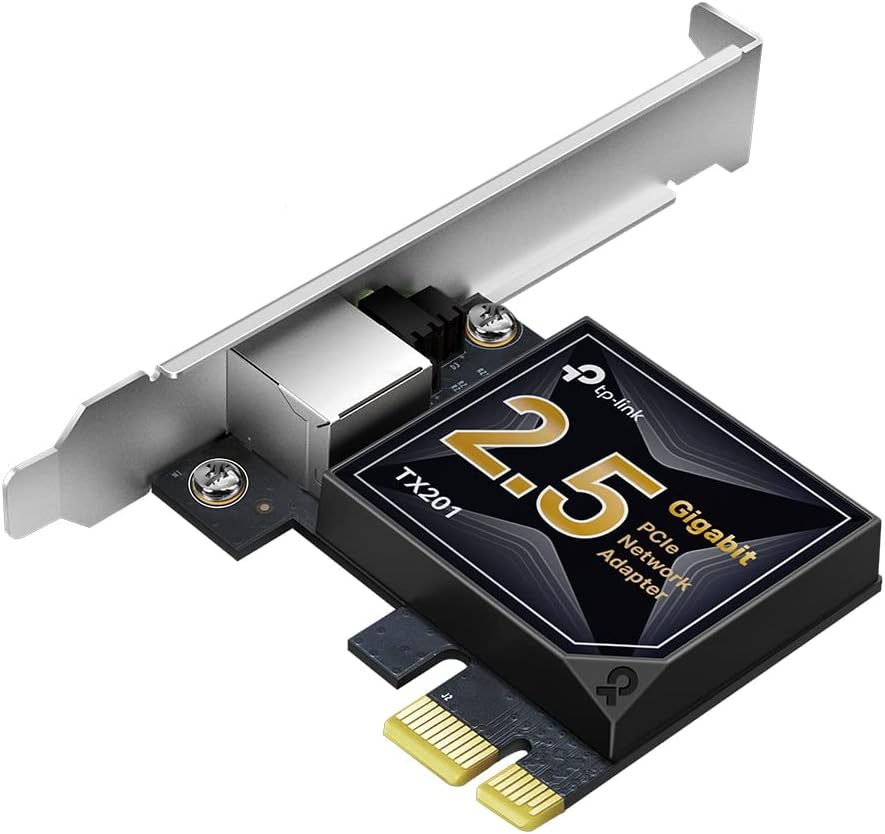
Mounting three or four NFS shares on the client and pooling them through a MergerFS FUSE mount means your network link matters more than ever. This 2.5GbE PCIe card is cheap, works out of the box on most Linux distros, and makes sure the NIC isn’t the bottleneck when you’re streaming from a client-side merged pool.
Step 3: Create the MergerFS FUSE Pool on the Client
Install MergerFS on the client if you haven’t already. On Debian/Ubuntu:
Grab the latest .deb from the MergerFS releases page:
https://github.com/trapexit/mergerfs/releases
sudo dpkg -i mergerfs_<version>.deb
Create the directory where the merged FUSE pool will appear:
sudo mkdir -p /media/storage
Then add the MergerFS FUSE mount to /etc/fstab:
/mnt/pool/disk* /media/storage fuse.mergerfs direct_io,defaults,allow_other,dropcacheonclose=true,inodecalc=path-hash,category.create=mfs,minfreespace=50G,fsname=storage 0 0
Here’s what the key MergerFS options are doing:
direct_io- Bypasses the kernel page cache. This is important when the underlying filesystems are NFS mounts, since the NFS client has its own caching layer. Double-caching through both NFS and FUSE leads to stale reads and wasted memory.dropcacheonclose=true- Drops cached data when a file is closed. Another safeguard against stale data when MergerFS operates over NFS-mounted filesystems.inodecalc=path-hash- Generates inode numbers based on the file path rather than the underlying device. This keeps inode numbers stable even if files exist on different disks, which matters for applications that track files by inode.category.create=mfs- The “most free space” policy. New files get written to whichever disk has the most available space. Good default for media storage. If you’re using SnapRAID, keep in mind that new files written through this policy won’t be protected until the nextsnapraid syncruns.minfreespace=50G- Disks with less than 50GB free won’t receive new files. Adjust this based on your disk sizes - you don’t want a drive filling up to 100%.allow_other- Lets users other than the one who mounted the FUSE filesystem access it. Required if you’re running services like Plex, Jellyfin, or containerized apps under different user accounts.
Mount it:
sudo mount -a
Check that the merged pool looks right:
df -h /media/storage
ls /media/storage
You should see a single view of all your files across all disks, just like before - but now without the stale file handle errors.
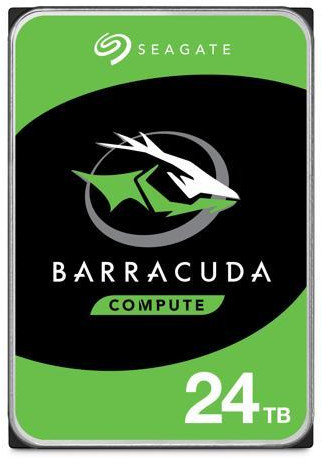
When each disk in your MergerFS pool gets its own NFS export, bigger drives mean fewer exports to manage and fewer fstab entries on each client. 24TB per disk also means your SnapRAID parity drive covers a lot of storage per slot. Fewer disks, less complexity, same merged pool on the other end.
Why This Fixes Stale NFS File Handles
The root cause was always about how FUSE filesystems interact with NFS file handles. When NFS exports a real, single-disk filesystem like ext4 or XFS, the file handles are based on stable inode and device IDs that don’t change. The NFS server and client stay in agreement about what each handle points to.
MergerFS, as a FUSE-based filesystem running in userspace, generates its own virtual file handles that can shift when the underlying layout changes. NFS has no mechanism to track those shifts across a FUSE layer, so the handles go stale. This is a fundamental limitation of exporting any FUSE filesystem over NFS, not just MergerFS.
By moving the MergerFS FUSE mount to the client side, NFS only ever deals with real on-disk filesystems. Each NFS export is a direct, one-to-one mapping to a physical disk partition. The file handles stay valid indefinitely. MergerFS then operates entirely in local userspace on the client, where FUSE handle behavior doesn’t need to survive a network round-trip.
What Happens to SnapRAID in This Setup
If you’re running SnapRAID alongside MergerFS (which is one of the most common storage configurations in homelabs), nothing changes on the server side. SnapRAID always operates on the individual data disks, not on the MergerFS pool. Your SnapRAID configuration file still points to the same /mnt/Pool/Disk1, /mnt/Pool/Disk2, etc. paths. Your parity disk stays local to the NAS. Your snapraid sync and snapraid scrub cron jobs keep running exactly as before.
The only thing that changed is how those disks get to the client machines. Instead of NFS exporting a single FUSE-merged path, you’re exporting the same underlying directories that SnapRAID already knows about. If anything, this architecture is cleaner because there’s no ambiguity about which layer owns what - SnapRAID and NFS both work directly with the real filesystems, and MergerFS handles the convenience of a unified view on whatever machine needs it.
Things to Watch Out For
Boot order matters.
The NFS mounts need to be up before the MergerFS FUSE mount tries to pool them. In most cases, systemd handles this correctly because the fstab entries are processed in order and fuse.mergerfs depends on the mount points being available. If you’re seeing empty pools after a reboot, look into adding x-systemd.requires or x-systemd.after options to the MergerFS fstab line, or use an automount approach.
Adding new disks.
When you add a new drive to the NAS, you need to add a new NFS export on the server, a new NFS mount entry on each client, and update the MergerFS glob pattern if the new disk doesn’t match /mnt/pool/disk*. If you’re running SnapRAID, you’ll also need to add the new disk to your SnapRAID config and run a sync - but you’d have to do that regardless of how you export over NFS.
SnapRAID sync timing.
Since new files written through the client-side MergerFS pool end up on individual disks on the NAS, they won’t have parity protection until the next snapraid sync. This is the same as any MergerFS and SnapRAID setup - it’s not introduced by this architecture change. If you’re not already running SnapRAID syncs on a schedule, set up a cron job or use a helper script like snapraid-runner to automate it.
Performance.
Running a FUSE filesystem on the client over NFS mounts adds a small layer of overhead compared to a direct NFS export. In practice, for media streaming, file serving, and typical homelab workloads, this is negligible. The FUSE overhead is mostly in metadata operations, and the NFS network latency dominates actual file transfer times anyway. If you’re doing heavy random I/O or database-style workloads over this setup, you might want to benchmark, but that’s probably not what you’re using MergerFS for.
Multiple clients.
Each client that needs the merged view needs its own MergerFS install and FUSE mount configuration. This is the main tradeoff - it’s per-client setup instead of a single pool on the NAS. For most homelabs with one or two client machines, it’s not a big deal. If you have many clients, you might want to script the deployment or use configuration management.
Wrapping Up
Stale file handles on NFS with a MergerFS FUSE pool is one of those problems where the symptoms point you in every direction except the actual cause. You’ll check NFS timeouts, restart services, fiddle with cache settings, and none of it sticks. The real fix is architectural: stop exporting the MergerFS FUSE mount over NFS. Export the individual drives directly and pool them with MergerFS on whatever client needs the merged view.
Your SnapRAID parity stays exactly where it is. Your NFS file handles stay stable because they’re backed by real filesystems instead of a FUSE layer. And you stop re-troubleshooting the same stale file handle errors every few weeks, which honestly is the best part.
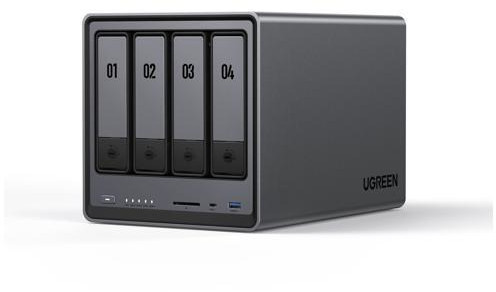
Four bays, an Intel N100, and a 2.5GbE port. Four bays is the sweet spot for a MergerFS and SnapRAID setup - three data disks pooled with MergerFS and one dedicated SnapRAID parity drive. Plenty of CPU headroom to serve multiple NFS exports without the FUSE overhead since pooling happens on the client side.