
You add a blocklist to your first Pi-hole. Easy. Then you remember you’ve got two more Pi-holes scattered around your network. Each one needs the same update. Manually. You tab between admin pages, copying settings, and by the second one you’re asking yourself why you ever thought multiple Pi-holes was a good idea.
Nebula Sync On GitHub fixes this. It keeps multiple Pi-hole servers in sync by automatically copying blocklists, local DNS records, and settings from one primary Pi-hole to all your replicas. Change something once on the primary, and Nebula pushes it everywhere else within a few mins.
If you’re running multiple Pi-holes and you’re tired of manual updates, this guide will get you set up. If you can log into pihole/admin and run Docker, you can do this.
Quick checklist:
- 2+ working Pi-hole nodes (same major version, ideally v6)
- One node chosen as PRIMARY (the only one you edit)
- A basic understanding of Docker/Compose
- Router/DHCP hands out both Pi-hole IPs (DNS) for failover
Why Sync Multiple Pi-hole Servers?
Why Run More Than One Pi-hole?
One Pi-hole works great until it doesn’t. Maybe you’re updating it at 2am and something breaks. Maybe the SD card dies. Whatever the reason, when your single DNS server goes down, your entire network loses internet. Your spouse can’t stream. The smart home stops working. You know how this goes.
Multiple Pi-holes solve this:
- Redundancy: One Pi-hole fails, DNS keeps working.
- Maintenance without downtime: Update one node while the other handles queries.
- Better coverage: Every device stays protected during updates or failures.
The problem? Managing them manually is a pain. Every blocklist or whitelist addition, every DNS entry, every setting tweak has to be repeated on each node. That gets old fast.
Two Sync Approaches, One Clear Winner for v6
You’ve got two main options for syncing Pi-holes:
Gravity Sync is the old reliable. It’s a bash script that syncs databases over SSH. Works great for Pi-hole v5.x, but it wasn’t built for v6’s API architecture.
Nebula Sync is newer and designed specifically for Pi-hole v6’s web API. It syncs more than just gravity databases and handles the modern Pi-hole setup better.
We’re using Nebula Sync here because it’s built for v6 and just works cleaner with current Pi-hole versions.
Prerequisites and Lab Layout
What You Need
Before you start, make sure you have:
- Two or more working Pi-hole servers
- Each Pi-hole accessible at
http://<ip>/adminorhttps://<host>/admin - An admin password set on each Pi-hole
- Something that can run Docker (often one of the Pi-holes works fine)
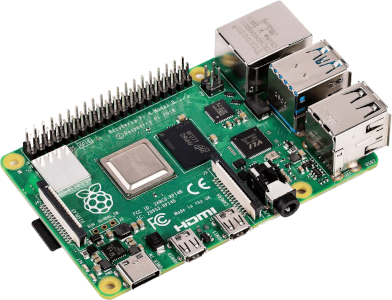
Quiet, cheap, and plenty for Pi-hole + Nebula Sync.
If you’re doing heavy DNS for a big network, use a small x86 box instead.
Example Setup
Throughout this guide, I’ll use:
pihole1at 192.168.1.10 (Primary)pihole2at 192.168.1.11 (Replica)
Swap in your own IPs. You can add more replicas later.
Check Pi-hole Versions (Important)
Log into each pihole/admin dashboard and check the version at the bottom of the page.
Keep all nodes on the same major version, ideally v6.x. Mixing versions causes weird issues. If they don’t match, update each node:
pihole -up
Decide Where Nebula Sync Will Run
Two common options:
- Option A (simplest): Run Nebula Sync as a Docker container on the primary Pi-hole.
- Option B: Run it on a separate Docker host that can reach all Pi-hole admin URLs.
For most people, Option A is easiest.
Step 1: Verify Each Pi-hole Works Standalone
Don’t skip this. If a Pi-hole is broken before you sync it, you’ll just spread the brokenness around.
On each Pi-hole:
- Open
http://<pihole-ip>/admin. - Log in with the admin password.
- Confirm the dashboard loads and shows recent queries.
- From the terminal, tail logs:
pihole -t
- From a client device, temporarily set DNS to only that Pi-hole and browse a few sites.
If DNS queries show up in the log, you’re good. If not, fix networking or service issues before moving on.
Step 2: Gather URLs and Credentials
Nebula Sync talks to Pi-hole via the web API, so you need the exact URLs and passwords.
For each Pi-hole, write down:
- Full admin URL, including
/admin- Example:
http://192.168.1.10/admin
- Example:
- Admin password
Nebula expects this format:
URL|password
Example:
http://192.168.1.10/admin|SuperSecretPassword
/admin at the end of the URL. Don’t be that person.
Step 3: Create a Nebula Sync Docker Compose File
Most people deploy Nebula Sync with Docker Compose or Portainer.
Example compose.yml
services:
  nebula-sync:
    image: ghcr.io/lovelaze/nebula-sync:latest
    container_name: nebula-sync
    environment:
      - PRIMARY=http://192.168.1.10/admin|PRIMARY_PASSWORD
      - REPLICAS=http://192.168.1.11/admin|REPLICA_PASSWORD
      - FULL_SYNC=true
      - RUN_GRAVITY=true
      - CRON=*/5 * * * *
    restart: unless-stopped
Replace the URLs and passwords with your actual ones.
.env file:
Do this instead from the same directory where your compose.yaml file lives
nano .env
and paste this:
PIHOLE_PRIMARY_URL=http://192.168.1.10/admin
PIHOLE_PRIMARY_PASSWORD=YourSecretPassword

PIHOLE_SECONDARY_URL=http://192.168.1.11/admin
PIHOLE_SECONDARY_PASSWORD=YourSecretPassword
Then reference them in compose like this:
- PRIMARY=${PIHOLE_PRIMARY_URL}|${PIHOLE_PRIMARY_PASSWORD}
- REPLICAS=${PIHOLE_SECONDARY_URL}|${PIHOLE_SECONDARY_PASSWORD}
Now you can share your compose file and not have to worry about removing the password.
Example 2 .env compose.yaml
services:
  nebula-sync:
    image: ghcr.io/lovelaze/nebula-sync:latest
    container_name: nebula-sync
    env_file:
      - .env
    environment:
      - PRIMARY=${PIHOLE_PRIMARY_URL}|${PIHOLE_PRIMARY_PASSWORD}
      - REPLICAS=${PIHOLE_SECONDARY_URL}|${PIHOLE_SECONDARY_PASSWORD}
      - FULL_SYNC=true
      - RUN_GRAVITY=true
      - CRON=*/5 * * * *
    restart: unless-stopped
Key Environment Variables Explained
- PRIMARY: The Pi-hole you’ll always edit manually. This is your source of truth.
- REPLICAS: Pi-holes that receive config from the primary. Separate multiple with spaces.
- FULL_SYNC: Set to
trueto sync everything Nebula supports. - RUN_GRAVITY: Tells Pi-hole to run gravity after syncing.
- SCHEDULE: Cron-style interval.
*/5 * * * *means every 5 minutes, a good starting point.
Common mistakes:
- Missing
/admin - Wrong
http://vshttps:// - Typos in passwords
Step 4: Deploy Nebula Sync
From the directory containing your compose file:
docker compose up -d
Then check logs:
docker logs -f nebula-sync
What you want to see:
- Successful connection to primary
- Sync operations targeting replicas
- No authentication or connection errors
If you see authentication errors, double-check those URLs and passwords. Connection errors? Verify HTTP vs HTTPS and make sure you can load the admin pages in a browser from the Docker host.
Step 5: First Sync Test with Gravity and Blocklists
Time to confirm real data is syncing.
On the primary Pi-hole:
- Go to Group Management > Adlists.
- Add a test blocklist or toggle an existing one.
- Click Save and Update
Wait for the next Nebula run (or restart the container because who has patience?).
On the replica:
- Open
/admin. - Navigate to Group Management > Adlists.
- Confirm the new list appears and domain counts match closely.
If it’s there, gravity syncing works. Nice.
Step 6: Sync Local DNS and Custom Entries
This is where Nebula Sync really shines compared to older tools. Custom DNS entries sync automatically.
On the primary:
- Go to Local DNS > DNS Records.
- Add:
- Hostname:
tim.example.com - IP:
10.0.0.50
- Hostname:
- Save.
After the next sync:
On the replica:
- Open Local DNS > DNS Records.
- Search for
tim.example.com. - Confirm it exists and points to the same IP.
Test it:
nslookup tim.example.com 192.168.1.11
You should get 10.0.0.50.
Step 7: Day-to-Day Workflow (Primary/Replica Rules)
Once everything’s working, the rules are simple:
- Always make changes on the primary Pi-hole.
- Treat replicas as read-only in the UI.
- Let Nebula Sync handle propagation.
You can adjust the sync frequency if needed. For most homelabs, every 5 to 15 minutes works well. More frequent syncing means less drift time but more API calls hitting your Pi-holes.
Step 8: Router and Client DNS Configuration
To actually benefit from multiple Pi-holes, clients need to know about them.
Simple Setup: Two DNS IPs
In your router’s DHCP settings:
- DNS 1: 192.168.1.10
- DNS 2: 192.168.1.11
Clients automatically fail over if one Pi-hole is unavailable. It’s not instant, but it works.
Advanced Option: Virtual IP
If you’re feeling ambitious, tools like keepalived can give you a single virtual IP that floats between Pi-holes. This is optional and overkill for most people.
Step 9: Testing Failover and Basic Pi-hole Tests
Make sure your redundancy actually works:
- Ensure clients receive both DNS IPs from DHCP.
- Stop Pi-hole on the primary or reboot the server.
- Browse the web from a client.
- Check the replica’s Query Log for activity.
Useful commands:
pihole -tto watch live queriesdigornslookupagainst each Pi-hole IP- Visit ad-heavy sites and confirm blocks appear
Step 10: Maintenance and Updates
Updating Pi-hole
On each node:
pihole -up
Keep versions aligned to avoid API mismatches.
Updating Nebula Sync
From the compose directory:
docker compose pull
docker compose up -d
Backup Strategy
Before major changes:
- Export Pi-hole config from the primary
- Keep a copy offline
If something breaks:
- Stop the Nebula container.
- Restore the primary from backup.
- Restart Nebula Sync.
Troubleshooting Common Problems
Quick Troubleshooting Table
| Symptom | Likely cause | Fix |
|---|---|---|
| Authentication errors in Nebula logs | Wrong password or URL format | Re-check password and make sure the URL includes /admin |
| Connection errors / timeouts | Wrong scheme (HTTP vs HTTPS) or network issues | Verify http:// vs https://, check firewalls, make sure the admin UI loads in a browser |
| Changes not appearing on replicas | FULL_SYNC disabled, schedule not running, or edits made on replica | Confirm FULL_SYNC=true, check logs for runs, only edit the primary |
| Nodes drift after updates | Mixed major versions | Upgrade all nodes; don’t mix v5 and v6 |
| Expecting DHCP to sync | Not supported | Keep DHCP on router or manage separately |
Nebula Sync Fails Authentication
- Double-check admin passwords.
- Confirm
/adminis included in the URL. - Verify HTTP vs HTTPS.
Changes Not Appearing on Replicas
- Confirm
FULL_SYNC=true. - Check Nebula logs for recent runs.
- Make sure changes were made on the primary only.
Mixed Pi-hole Versions
- Upgrade all nodes to the same major version.
- Don’t mix v5 and v6.
DHCP Expectations
Nebula Sync does not sync DHCP settings or leases. Keep DHCP on your router or manage it separately.

Best for people upgrading from a Raspberry Pi who want Pi-hole plus extra Docker containers without lag, but it costs more and uses more power than a Pi.
FAQs (Nebula Sync + Pi-hole)
➤ Can I sync more than two Pi-hole servers with Nebula Sync?
Yes. Define one primary and add multiple replicas in the REPLICAS variable.
Example:
- REPLICAS=http://ph2.example.com|password,http://ph3.example.com|password
or with env:
- REPLICAS=${PIHOLE_SECONDARY_URL}|${PIHOLE_SECONDARY_PASSWORD},${PIHOLE_TERTIARY_URL}|${PIHOLE_TERTIARY_PASSWORD}
➤ Do I have to run Nebula Sync in Docker?
➤ oes Nebula Sync work with Pi-hole v6?
➤ Will Nebula Sync keep DHCP settings in sync?
➤ Can I edit settings directly on replicas?
➤ What happens if a replica is offline during sync?
➤ Is it safe to mix HTTP and HTTPS?
➤ How often should I run the sync?
➤ Do I still need to run `pihole -g` on replicas?
➤ How do I test that everything works?
Conclusion
Running multiple Pi-hole servers for redundancy is great until you realize you’ve tripled your management overhead. Nebula Sync fixes this by letting you treat one Pi-hole as the source of truth and having the rest automatically mirror it.
If you’re tired of juggling multiple pihole/admin pages and trying to remember which server has the latest config, this setup changes everything. Start with two nodes, get comfortable with the workflow, then add more as you need them.
Next steps:
- Experiment with sync schedules
- Add a third replica
- Explore virtual IP failover if you want true high availability
Once you’ve got this running, you won’t go back to manual Pi-hole updates.
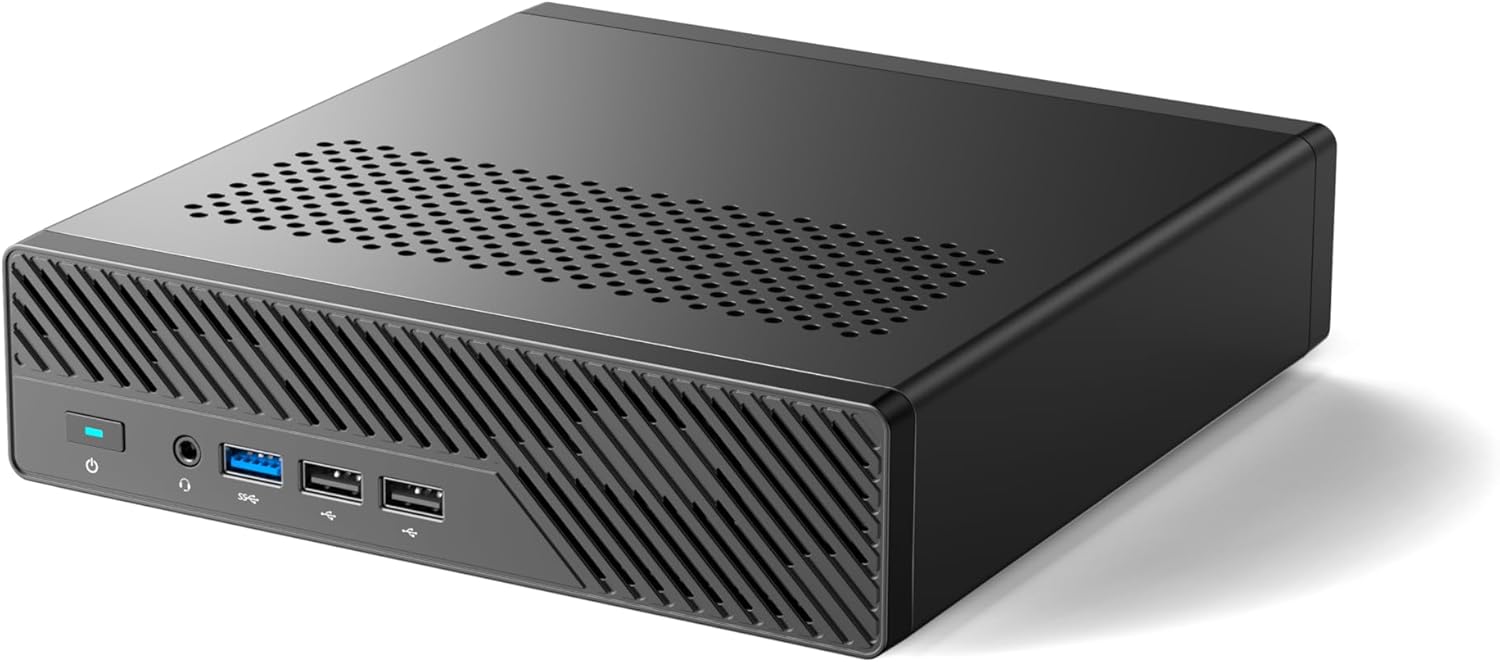
Best for stepping up from Pi-hole into a Proxmox mini-lab with serious networking thanks to built-in 10GbE and 2.5GbE, but it’s unnecessary overkill if you’re only doing simple Pi-hole sync.